



Today, many people want to use more than one screen with their laptops or computers. Whether you are working from home, managing gaming, editing videos, or running a business, monitors make life easier. With two or three screens, you can do more at the same time without jumping between tabs.
But the big question is, how do you connect many monitors to your computer?
The answer often depends on the port available on your laptop or desktop. The most common ports are HDMI and DisplayPort. Sometimes, you need adapters or splitters to do everything. In this blog, we will explain the phase rate of how to connect several monitors using HDMI and DisplayPort adapters. We will also share some practical suggestions that will help you avoid common problems.
Why Use Multiple Monitors?
Before we take a detailed look at the steps, let’s understand why multiple monitors are highly recommended:
-
Work productivity: It boosts work productivity by ensuring separate screens for emails, work documents, and research.
-
Gaming: Bigger view or multitasking while gaming.
-
Content creation: Video editors, graphic designers, and photographers can use one screen for tools and another for the main project.
-
Business use: Traders, analysts, or managers often monitor data across several displays.
Once you use more than one monitor, going back to a single screen feels limiting.
Step 1: Check Your Computer Ports
Look at your laptop or desktop to see what ports it has. Most modern devices will have:
-
HDMI port – Common on laptops and TVs. It sends both video and audio.
-
DisplayPort – Found more often on desktops and high-end laptops. It supports higher resolution and refresh rates.
-
USB-C or Thunderbolt – Many new laptops use this, but it can connect to HDMI or DisplayPort with the right adapter.
If your computer has only one HDMI or DisplayPort, you will need adapters or docking stations to connect more monitors.
Step 2: Decide How Many Monitors You Want
Ask yourself: do you want two screens or three screens?
-
For two monitors, most laptops can handle this with one HDMI and one DisplayPort (or adapter).
-
For three or more monitors, you may need advanced adapters, a docking station, or a graphics card that supports multiple displays.
Step 3: Use HDMI to Connect Monitors
HDMI is the easiest way because most monitors support it. Here’s how:
-
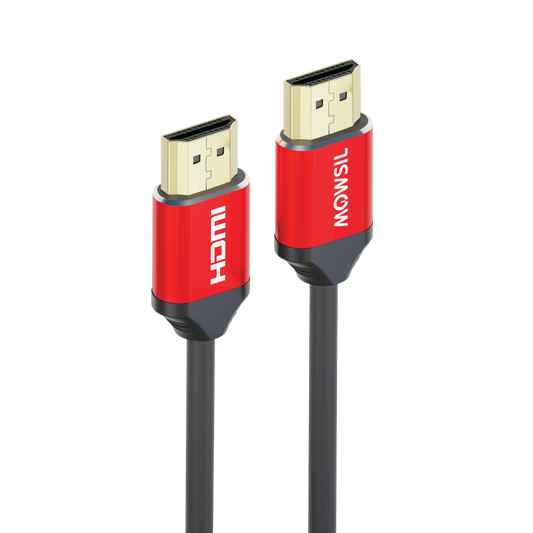
Connect one end of the HDMI cable into your computer’s HDMI port.
-
Connect the other end to the monitor.
-
Go to your display settings on the computer.
-
Choose “Extend Display” if you want to use the second screen as extra space.
If your computer has only one HDMI port but you want two HDMI monitors, you can use an HDMI splitter. A splitter usually duplicates the same screen, not extends it. For extended displays, you will need an HDMI to USB or HDMI to DisplayPort adapter.
Step 4: Use DisplayPort for More Monitors
DisplayPort is powerful. Many computers with DisplayPort allow you to connect multiple monitors in a chain. This is called Daisy Chaining.
Here’s how:
-
Make sure that your monitor supports DisplayPort
-
Connect the computer to the first monitor with a DisplayPort cable.
-
Use another DisplayPort cable to connect the first monitor to the second one.
-
Go to your display settings and choose how you want the screens arranged.
With DisplayPort, you can often connect 2–4 monitors without needing extra adapters. This is a great option for professionals.
Step 5: Use Adapters When Ports Don’t Match
Sometimes your computer has HDMI, but your monitor has DisplayPort or the other way around. This is where adapters help.
Common adapters include:
-
HDMI to DisplayPort
-
DisplayPort to HDMI
-
USB-C to HDMI
-
USB-C to DisplayPort
Adapters are small and simple. Just plug one side into the computer and the other into the monitor cable. They allow flexibility when devices don’t match.
Step 6: Set Up Your Display Settings
After connecting the monitors, you must tell your computer how to use them.
On Windows:
-
Right-click on the desktop and choose Display Settings.
-
You will see all connected monitors.
-
Select each monitor and choose whether to Duplicate or Extend.
-
Duplicate = Same screen on all monitors.
-
Extend = Different parts of the desktop on each monitor.
-
Arrange the monitors in the right order to match how they sit on your desk.
On Mac:
-
Go to System Preferences > Displays.
-
Click Arrangement.
-
Choose Extend or Mirror (same as Duplicate).
Step 7: Test and Adjust
Once the monitors are connected, check:
-
Is the resolution clear on each screen?
-
Is the refresh rate smooth enough?
-
Are the monitors arranged in the right order?
If not, adjust the settings. For example, you may want your main monitor in the center with the others on the side.
Common Problems and Solutions
Problem 1: Second monitor not detected.
-
Check the cable connection.
-
Try another HDMI/DisplayPort cable.
-
Update your graphics driver.
Problem 2: Monitors show the same screen instead of extended.
-
Go to display settings and select “Extend”.
-
If using a splitter, remember it only duplicates. Use MST hubs or adapters for extension.
Problem 3: Poor video quality.
-
Use high-quality cables.
-
Make sure the adapter supports the resolution (for example, 4K).
Problem 4: Limited number of monitors.
-
Some laptops only support two screens maximum. For more, use a docking station or external GPU.
Tips for Smooth Setup
-
Always use good-quality adapters and cables. Cheap ones often cause issues.
-
Check your computer’s manual to know how many monitors it supports.
-
Keep the desk organised by managing cables with clips or ties.
-
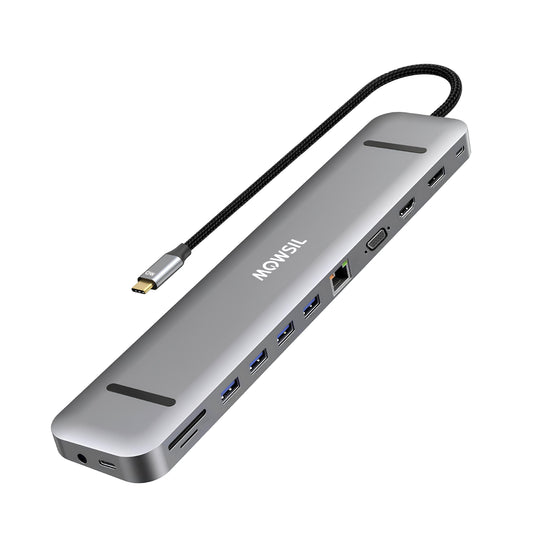
If you use monitors daily for work, invest in a docking station for easy plug-and-play.
Final Thoughts
Adding multiple monitors can be difficult for the first time, but with the right cable and adapter, it becomes very simple. HDMI is easy and works with most monitors, while DisplayPort is more advanced and supports Daisy Chaining. With the adapter, you can mix and match as required.
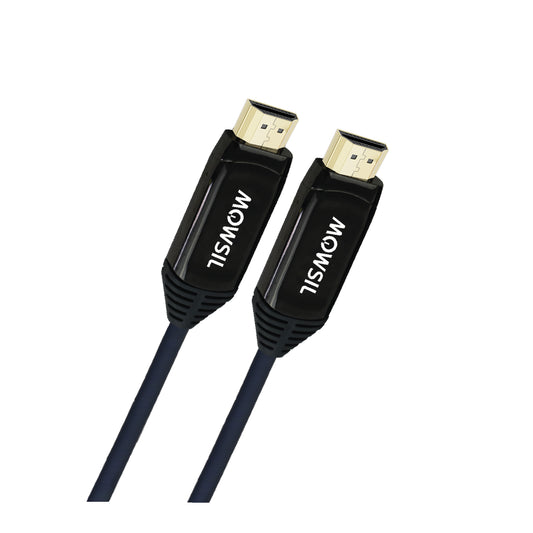
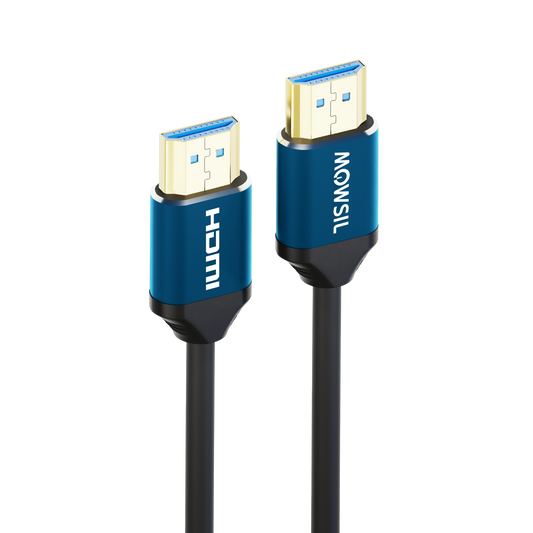
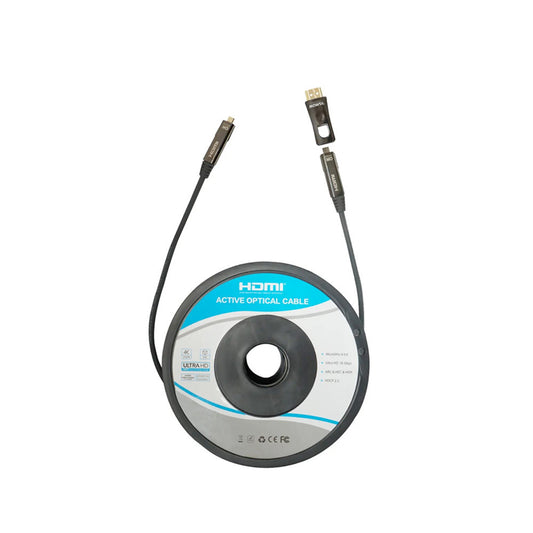
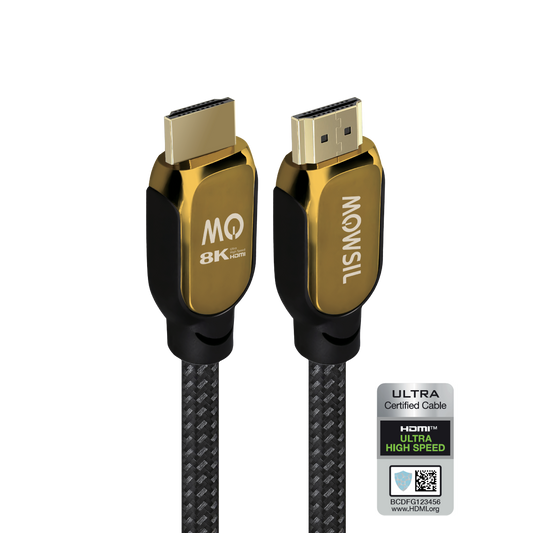
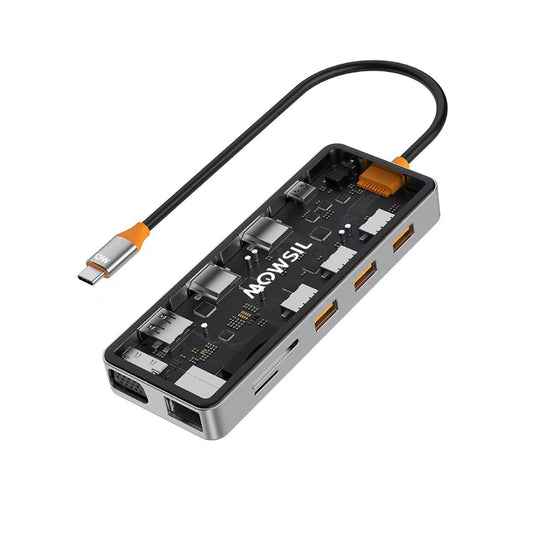
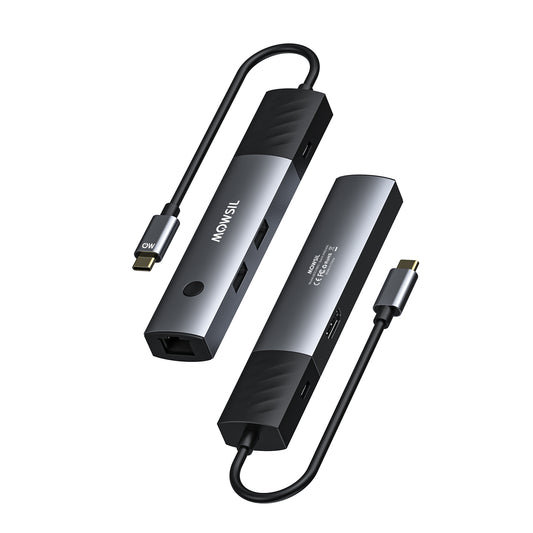
For professionals in the UAE and worldwide, having a trusted brand for adapters and cables is very important. This is where Mowsil makes a difference. Mowsil provides high-quality HDMI cables, DisplayPort adapters, USB-C converters, and docking solutions that make connecting multiple monitors smooth and reliable. Their products are built to last, support high resolution, and work perfectly for home, office, or business use.